Tuesday, May 19, 2026
Introducing Volt Cloud

Some Volt features need your phone connected to keep working when your computer is off. Send Later has had this for a while, but the setup was buried: a separate QR code inside the Send Later settings that most users never found or understood.
Then we shipped Claude, ChatGPT, and MCP, all with the same requirement. Each one would have needed its own QR setup
That doesn't work, it's confusing.
What Volt Cloud Is
Volt Cloud is always-on connectivity. One QR scan from your phone connects everything.
After that, Send Later, Claude, ChatGPT, and MCP all run even when your PC is off or sleeping. You don't configure it per feature. You configure it once.
How It Shows Up in the App
Volt Cloud surfaces in two places:
Settings: a status row that shows whether Cloud is active, with a direct path to set it up or manage it.
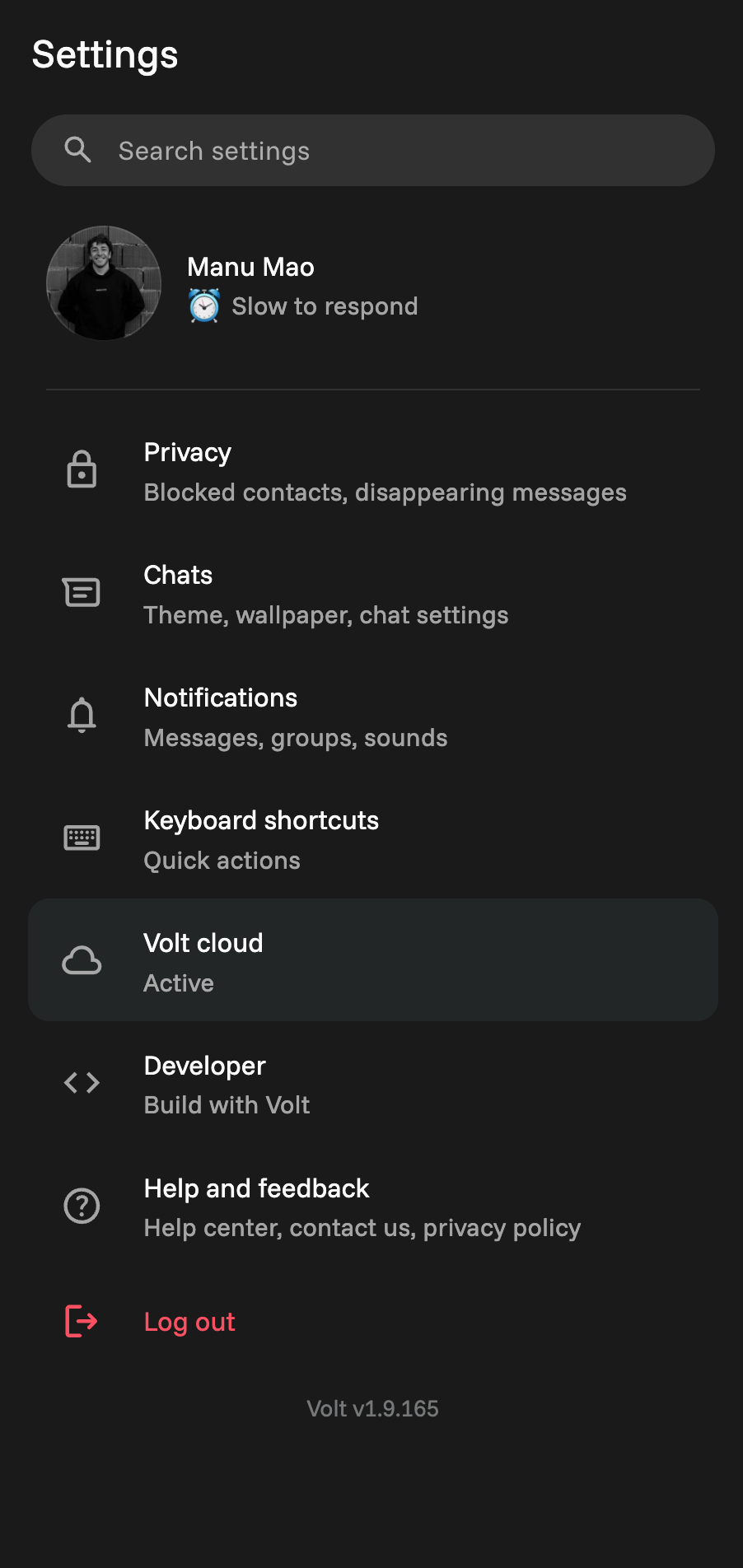
The sidebar: if Cloud disconnects, a red strip appears at the bottom of the sidebar. It's intentionally hard to miss, because silent failures are worse than visible ones.
Getting Set Up
The next time you use Send Later, Claude, ChatGPT, or MCP, you'll be prompted to connect Volt Cloud if you haven't already. It takes about two minutes and only requires scanning a QR code from your phone.